Sharing the web with students so they take full advantage of what it has to offer! Discovering tools to make students online experience more effective and efficient. WE CLICK TO: DISCOVER, EXPLORE, LEARN, CREATE, COMMUNICATE, COLLABORATE, CONNECT AND SHARE - ARE YOU CLICKING?
Pages
The class is designed to teach students about web applications, digital citizenship, personal network building, and social media responsibility and practice. This blog will be used to share with our readers the tools, websites, and web resources that students are learning about. We hope that you find a tool that you can utilize.
There are so many web applications available on the Internet that students may not even know exist. In this course, students will explore the Internet and take advantage of all that it has to offer. Students will learn that Google is more than just a search engine. They will discover various web applications that will help make their time on the Internet more effective and efficient. The web applications that will be explored include, but are not limited to: sharing buttons, blogs, avatars, RSS, social bookmarking, photo sharing/editing, audio and video, presentation, drawing, collaboration tools, and screencasts. Internet marketing and shopping sites will also be explored. Students will explore applications of which they can utilize to enhance both their learning and social experiences. Students will learn and practice digital literacy and responsibility, collaborate, share, create, socialize, and organize content, while demonstrating internet safety. Upon leaving this course students will be informed digital learner/citizen!
I LOVE LOVE LOVE looking for new tools to share with my students! I explore the web daily in search of new tools. I also gain knowledge from other Social Media blogs/websites who have found resourceful tools. Thank you to all of those experts who share their love for technology with the rest of us!
I also enjoy looking at the students creativity - through their blogs! My students love exploring Social Media! And will walk away with a collection of tools (their own Personal Learning Network) that will enhance their Internet experience both personally, educationally, and professionally.
Search Cube
Internet Safety Tips

- Never give any personal information to anyone you meet online.
- Never meet up with anyone you don't already know.
- Don't fill out any "fun" questionnaires that are forwarded to you.
- Be careful about posting pictures of yourself.
- While online, you should avoid doing things that might hurt people or get yourself into trouble. Do not annoy, harass, offend, abuse, or threaten others while online.
Evernote
What is Evernote?
Notes and research
Web pages clips
Tasks and to dos
Photos of whiteboards and blackboards
Business card snapshots
Khan Academy
Technorati
Technorati is an Internet search engine for searching blogs. You can key in a topic and search blogs or individual posts.
Printer Friendly Button
Clipix: Organize your life!
Create an account using Facebook or Twitter!
To watch video about Clipix - click here!
Digg
Digg is a place for people to discover and share content from
anywhere on the web. Digg surfaces the best stuff as voted on by their community. They provide tools for the online community to discover content,
discuss the topics that they’re passionate about, connect with
like-minded people, and make new friends in the process. By looking
at information through the lens of the collective community on Digg,
you’ll always find something interesting and unique. They are committed to
giving every piece of content on the web an equal shot at being the next
big thing.
Digg builds lists of popular stories being shared across the web. Every story has a digg button. Along with that button is a number that is the number of people from the Digg community who have said they like that like or digg that story. The number of diggs a story collects over time can affect how that story spreads and gains more popularity as it spreads more.
News on Digg comes straight from the digg community! The best links found from around the web are shared on digg to gain traction and exposure as the link is shared virally. If you find an interesting link on the internet? Digg is the best
place to take that news further and spread it quickly amongst a vibrant
community.Info taken directly from Digg's Website!
Start digging today!
Internet Slang
On InternetSlang, you will find a list of slang terms, acronyms and abbreviations as used in websites, ICQ chat rooms, Blogs, SMS, and Internet forumns - a complete dictionary of slang. Please remember as with any webpage, you may come across words that stand for phrases containing words that may be offensive to some people. A good thing is that this website substituted asterisks, etc. for the words in question.
Ping.fm
Ping.fm is a free service that makes updating your social networks a snap!
to all of your favorite services!
Personal Learning Network - PLN
Throughout this course you have began building a PLN - PLN - Personal Learning Network. Today you expanded your PLN by following blogs, allowing readers to follow your blog, by subscribing to blogs, allowing readers to contact you. That is just the beginning. You will continue to build your PLN this semester. You can use your PLN to learn from others, ask for help on any topic, and contribute your ideas and thoughts. You will start using various online tools to build your own personal learning network!
Building a PLN means - making connections and building relationships with teachers, administrators, experts, etc. from around the world.
Having a PLN is about sharing ideas and resources, collaboration and learning. We may share our learning, ideas and expertise in different ways, using media and tools.
a PLN can be about anything... you can create a group based on a hobby, an interest, a passion, or your profession.
My PLN includes: Recipes, Money Saving, Social Media Tools, Health and Fitness
How to build a PLN? from Elena Elliniadou on Vimeo.
Feedjit
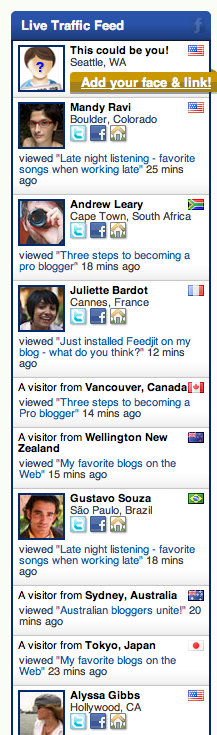
Feedjit lets you see friends and visitors as they arrive on your blog or website. Know when your best friends read about your latest adventure. If you are a business owner, be alerted when your most important clients view your latest product offering. Feedjit lets you know, right now, who is visiting your site. Simply add the Live Traffic Feed and instantly start seeing who is visiting your site as they arrive.Visit Feedjit and add a live traffic feed.
![]() |
| How exciting!! It actually shows the country, browser, operating system and how a visitor arrives on your site! |
Follow by Email
Lets follow by email to see what it is like: Blogger Tips and Tricks
Add the gadget to your blog.
Blog Followers Gadget
How do I follow blogs?
There are several ways to follow a blog. One of the easiest ways is to visit a blog that has added the Following widget and click on the "Follow" button under the "Followers" widget:
Select how you would like to follow the blog, then click the "Follow this blog" button. It is that simple, you are now a follower of the blog! If you elected to follow the blog publicly, your profile picture will be displayed on the blog with a link to your Blogger profile (Note: The widget may not show all followers of the blog. If this is the case all followers will be linked from the widget). When you become a follower of a blog, the blog will also be added to your Reading List on your Blogger dashboard and this site will also show on your. Additionally, you can become a follower of any blog or URL (even if the blog doesn't have the Followers widget) by adding the blog to your Reading List on the dashboard.RSS - Really Simple Syndication
Instead of bookmarking things that you found interesting and return to those resources periodically to check for updates. Going to sites to check for content can be a waste of your time if there’s nothing new to see. Instead, make that content come to you. Whenever you’re on a website, look for indicators that you can subscribe. Do you see the RSS logo pictured above? Do you see links called “Feed,” “Atom,” “RSS,” or “Subscribe”? These are indicators that an RSS feed is present. Some browsers even automatically detect the presence of feeds and turn on an RSS icon for you. A feed is just a compacted, machine-readable version of the content you’re already consuming. If you click on a feed, you may either see a bunch of code, you could see some snippits of the page content, or you could see a gaggle of buttons all with different logos on them. Either way, you’ve found a feed!
Feeds, as I mentioned, are machine-readable. They’re not very palatable to humans. You will need a tool to consume the feed. This is called a reader or an aggregator. Google Reader is a web-based tool that I utilize to keep up to date on recipe and technology blogs that I enjoy reading - it follows me wherever I go.
Once you have your feed address, find the place to click in your reader to “subscribe.” Yes, “subscribe” usually means “pay,” but in RSS terms it only means “sign me up to receive content from this source in the future.” Once you’ve clicked the subscribe button, paste the feed address into the appropriate box and hit subscribe!
![]() |
Here is a copy of my Goolge Reader.
|
Using RSS and a feed reader has given me the ability to consume much more material than I previously could. It gives me the chance to speed through lots of content and then stop when I see something that I care about and spend more time on it. Instead of going to every blog I like. Give RSS a try!
Copyrights and Wrongs
Have you ever used creative work that you found online? For example, a photo or a poem - for personal or school use?
When you use creative work you find online, what considerations do you make about who made it, if any? How do you think creators would want their work to be used? What would be okay? What would not be okay?
Respect Creative Work
What are ways you can be respectful of people's creative work?
- Check who owns it
- Buy it
- Get permission to use it
- Use it responsibly
- Give credit to the creator
- Asked your permission to use it?
- Gave you credit as the creator?
- Changed the picture or added a caption without asking you?
Fair use is the right to use copyrighted material without permission or payment, but only in certain ways. Fair use allows you to use only a small part of someone else's creative work as part of something new. The work can not be used for commercial purposes, and can be used in the following situations:
- schoolwork and education
- criticism or social commentary
- news reporting
- comedy or parody
Posting it on your blog or social networking site - WOULD NOT BE FAIR USEWashington College of Law, the Center for Social Media creates tools for creators, teachers, and researchers to better use their fair use rights.
What do you need to do if you want to use someone else's creative work?
- Check who owns it
- Get permission to use it
- Give credit to the creator
- Buy it
- Use it responsibly
Copyright: A law that protects you're a creator's ownership of and control over the work he or she creates, requiring other people to get you're the creator's permission before they copy, share or perform that work
Creative Commons: A kind of copyright that makes it easy for people to copy, share, and build on someone's creative work - as long as they give the creator credit for it
Public Domain: Creative work that is not protected by copyright and is therefore free for you to use however one wants
Facebook Like Button
The social networking website Facebook has become increasingly prevalent in popular culture. Virtually anything, from the mainstream to the obscure, has a Facebook page or Facebook group dedicated to it. By adding a Facebook "Like" button to your blog/website, you can increase the amount of exposure the site gets through Facebook itself. Embedding a "Like" button requires an understanding of HTML, but the amount of time required can be reduced by using the code generating tools available on Facebook's Developers website.
Here is the code - add a gadget and paste the following code: Changing the red part to your blog address.
<iframe src="http://www.facebook.com/plugins/like.php?href=jamesfavoriterecipes.blogspot.com&layout=standard&show_faces=true&width=450&action=like&font=verdana&colorscheme=light&height=80" scrolling="no" frameborder="0" style="border:none; overflow:hidden; width:450px; height:80px;" allowtransparency="true"></iframe>
Safer Internet Day 2012
With the emergence of smartphones, increased connectivity, and technology in schools and at home, the need for safety education is more important than ever before. Sharing resources and sparking discussion is the best way to educate and grow strong citizens in the 21st century.
Responsible, resilient digital citizens know to operate under the same good judgement online that they use in their offline lives. The Web may feel like a free-for-all. We must understand the risks that we face from others as well as from our own conduct, and the dangers posed by applications like viruses and phishing.
- Think before you post. Be proud of what you post and the reputation you build online.
- Don’t know, don’t show. Make sure you know your privacy settings.
- Take action and report bullying. Don't be a passive bystander.
- Have a family chat. Share what you know about online safety.
- Only “check in” with friends you know IRL (in real life). Know your geo-location privacy settings
Newseum
Visit Newseum!
Through a special agreement with more than 800 newspapers worldwide, the Newseum displays these front pages each day on its website. The front pages are in their original, unedited form, and some may contain material that is deemed objectionable to some visitors. Discretion is advised.
What it is: Newseum is a neat way for students to see the news from around the country. Front pages of newspapers from around the US are displayed on a map. Scroll over the map and the front page of the newspaper pops up. Click on a different country to display newspapers from around the world. How to integrate Newseum into the classroom: Newseum is a great site to visit for current events. This is a great way to find out what is happening state to state or around the world that is news worthy. Have students compare and contrast front page events around the country or around the world. Is there a particularly news worthy subject that seems to pop up in multiple states, multiple countries? Newseum could be a great discussion starter about newspapers, should they be saved or will they eventually be totally replaced by the Internet? Use Newseum each morning to get an update of current events using an interactive whiteboard. This site is like a virtual field trip around the world for newspapers.
Go Animate
GoAnimate:The developers of GoAnimate "believe everyone has good stories to tell." GoAnimate was created to provide an outlet for everyone's creativities and ideas. With GoAnimate, you can easily make animations the way you want to. There is nothing to download and there is no need to draw. You can make your own animated characters, direct your own cartoons, and watch others' creations. It's easy, fun and free. You can customize your animations with a large number of tools and features that allow you to create truly unique works of expression. (GoAnimate4Schools is a safe environment for students to fully express their creativity through animation.)
Activity #1: GoAnimate Tutorial
Tutorial #2 Videomaker
Begin by selecting the "Start Tutorial" option where you should see the following: "Welcome to the GoAnimate Animation Studio, where you can easily make your own cartoons. Since this is the first time you are here, we should go through a short tutorial to show you the basics. Let's get started!"
From there you will be taken through the basic steps of creating your first cartoon. You'll start by selecting a background. Next, you will select a main character for your story. Then you will be asked to enter some text and select a voice. In order to continue your story, you will need to add more actions and have longer conversations, so you will need to have more scenes. Think of scenes as frames in a comic strip or storyboard.
Each character can perform one action per scene. Also, each scene can only have one person speaking. Remember a scene is like a frame in a comic strip. Once you have finished going through the tutorial, you are ready to begin!
Activity #2: Create a Cartoon
You are to create an animated cartoon portraying two characters sharing a "Knock, Knock" joke! Have fun and be creative!
Activity #3: Create a Cartoon Character
Explore this feature in GoAnimate and create a new cartoon character. Place this cartoon on a background of your choice and add a "voice" to welcome people to your blog. You can add additional characters if you want. Post the finished "cartoon" on your blog! GoAnimate.com: Example by DawnJames
Like it? Create your own at GoAnimate.com. It's free and fun!
HAPPY BIRTHDAY FACEBOOK!
The World is Obsessed with Facebook YouTube Video
FuN FrIdAy!!!!!
I will show you each website before you begin. Please wait.
HAVE FUN creating!!!!
Don't forget to check Edmodo for your assignments.
FlashVortex - animate text
Flaming Text
To create your flaming text click here!
Animate Text
On this website you can create animated text that you can place on your blog, website, email it to a friend, post it on facebook, etc. You can add text as a gadget or in a blog post!
Click here to create your own animated text!

Friday, Feb. 3 - Check your Visitor Counter
Log in to your histats.com account and view the stats of your blog.
Create a post titled Visitor counter - explain what information you obtained from your visitor counter.
Did you have any visitors outside the US?
Histats - Visitor Counter
Lets start tracking our visitors!
There are numerous services available on the Internet for you to track your visitors. Today you will look at Histats.com and add a counter gadget to your blog.
As mentioned, on this website you can create a counter to add to your blog, which tracks your visitors. You must create an account on Histats.comTo see my HiStats counter - scroll down to the bottom of of this blog.
Follow these steps if you need help figuring histats out.
- Go to histats.com
- Register
- Check your email for confirmation
- check junk mail or spam folder it may have went there (mine did)
- Click the link to activate account
- Go to histats.com
- Login
- Click add a website
- Key in your blog address--for description just put Social Media, for title Social Media or whatever
- Click get your counter code
- You will see your blog address with a number beside it - click your blog address

- Click counter code in the right hand corner
- Click add a new counter
- choose your counter there are several--click to select
- check mark what you want to show up on your counter - page visits, etc.
- Click save
- Click counter id and code will appear for you to copy.
- Add the html gadget somewhere on your blog.
- When you have it finished have someone visit your blog.
- Now just explore histats - we will look at more closely next week.
| To read more about the features of Histats - click below. |